
🔧 App Settings
What you can do on this screen
Section titled “What you can do on this screen”App Settings control how the Pi-hole client app behaves on your device. These settings do not change Pi-hole itself, but they affect how information is displayed, how often data refreshes, and how the app feels to use.
Use this screen to:
- Customize appearance and language
- Tune chart behavior and performance
- Adjust advanced app-side preferences
Appearance and language
Section titled “Appearance and language”Choose how the app looks.

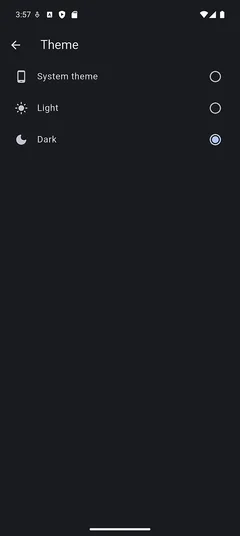
You can select:
- Light - always use a light theme
- Dark - always use a dark theme
- System Default - follow the device setting
Changes apply immediately and affect all screens.
Language
Section titled “Language”Choose the language used for the app interface.


Available languages include:
- English (default)
- Deutsch (German)
- Español (Spanish)
- 日本語 (Japanese)
- Polski (Polish)
This setting changes only the app UI, not Pi-hole server messages.
Manage connections to Pi-hole servers
Section titled “Manage connections to Pi-hole servers”The Servers section controls which Pi-hole instances the app can connect to.
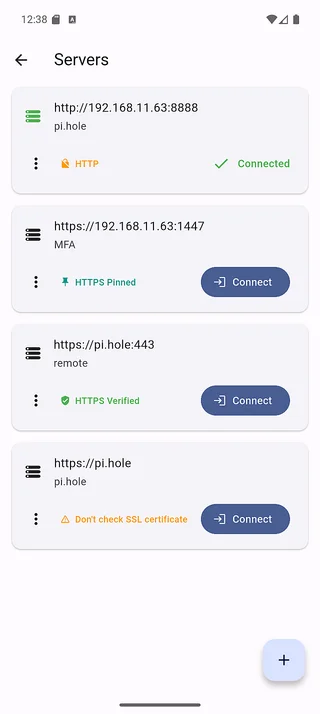
From here, you can:
- Switch the currently selected server
- Add a new Pi-hole server
- Edit an existing server entry
- Remove a server from the app
From v1.10.0 you can edit every field of a saved server, including the address, port, subroute and certificate settings, as well as the display name, password, default server flag and Pi-hole version.
To edit a server, open ⋮ > Edit on its entry in the list.
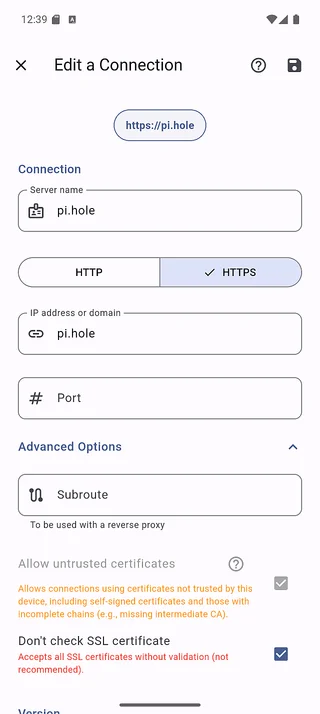
Keep these points in mind:
- Changing the address resets the pinned certificate, so the app verifies the certificate of the new host again.
- On a server with two-factor authentication, saving may ask for an authentication code.
- If the new settings cannot connect, the previous settings are restored.
Change the selected server when you want to manage a different Pi-hole instance. Add a new server when you deploy Pi-hole on another network or device.
Advanced setup
Section titled “Advanced setup”Advanced Setup contains fine-grained app behavior controls. These options are useful when tuning performance, data usage, or chart clarity.
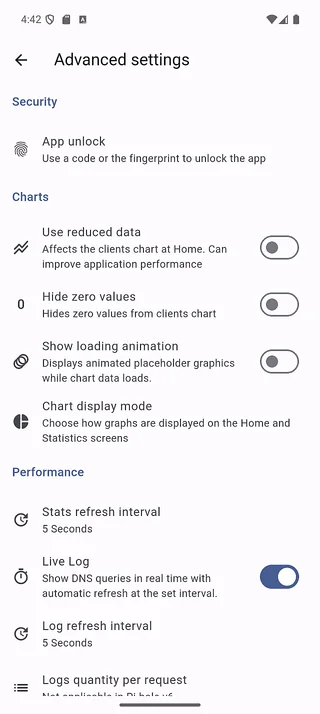
Most changes apply immediately. If multiple options are changed at once, allow the app a moment to refresh.
App unlock
Section titled “App unlock”This setting controls how the app is protected from unauthorized access. When enabled, authentication is required before the app can be used.
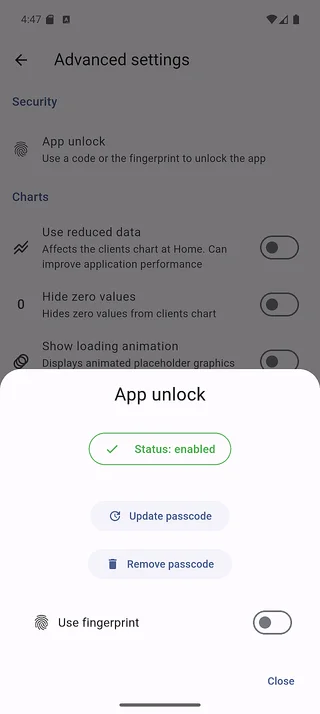
App unlock protects the app itself. It does not affect Pi-hole server authentication or API access.
Unlock with passcode
Section titled “Unlock with passcode”Passcode unlock requires a numeric code to open the app.
To set up a passcode:
- Open App unlock
- Tap Setup passcode
- Enter your desired passcode
- Enter the same passcode again to confirm
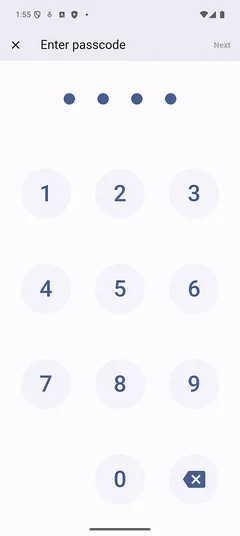
Use a passcode when your device is shared or when you want consistent protection regardless of biometric availability.
Unlock with fingerprint
Section titled “Unlock with fingerprint”Fingerprint unlock allows you to open the app using biometric authentication.
To enable fingerprint unlock:
- Complete the passcode setup steps above
- Enable the Use fingerprint toggle
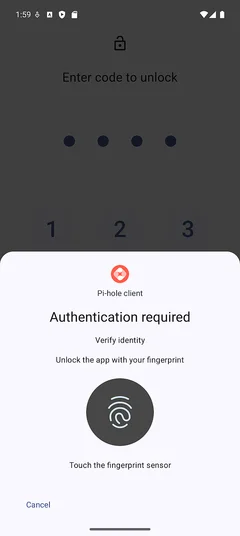
Fingerprint authentication is handled by the operating system. The app does not store or process biometric data itself.
Notes on unlock methods
Section titled “Notes on unlock methods”- A passcode is always required before fingerprint unlock can be enabled
- Fingerprint unlock provides faster access but depends on device support
- If biometric authentication fails, the passcode is used as a fallback
Use App unlock to add an extra layer of protection before accessing Logs, Settings, or server management features.
Chart density (Use Reduced Data)
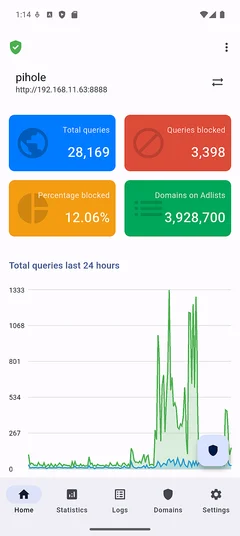
Section titled “Chart density (Use Reduced Data)”This option controls how much data is rendered in charts.
When Use Reduced Data is enabled, charts display fewer data points.
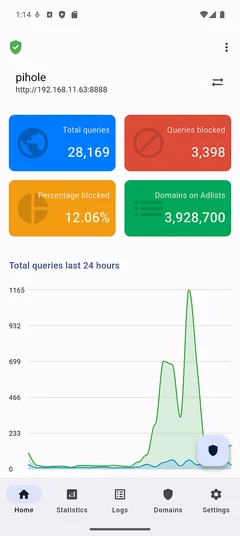
Enable this when:
- You are on a slow or metered connection
- Charts feel heavy or slow to update
Disable it when you want the highest level of detail.
Hide zero values
Section titled “Hide zero values”This option removes series with zero values from charts.
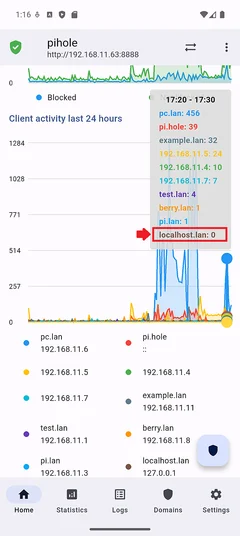
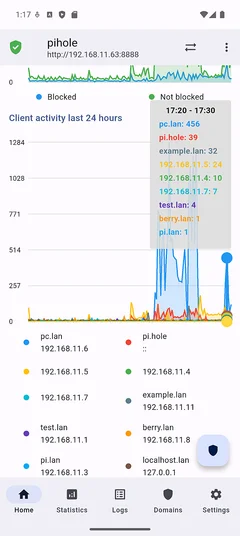
Enable it when charts feel cluttered or hard to read. Disable it when you want to see all possible series, even inactive ones.
Loading animation
Section titled “Loading animation”This setting controls whether charts animate while data is loading.

Enable it if you want clear visual feedback during refresh. Disable it if you prefer a quieter, static interface.
Chart display mode
Section titled “Chart display mode”Chart Display Mode controls how statistics are presented.
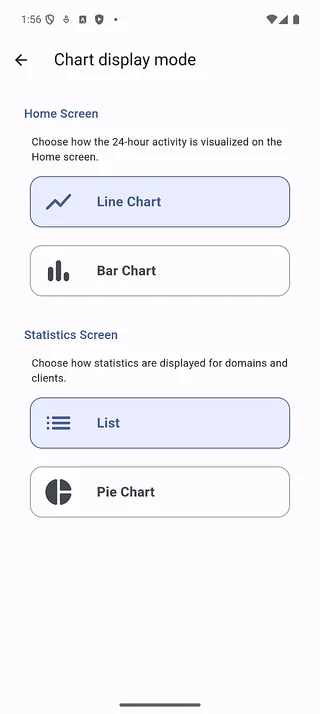
Home screen chart style
Section titled “Home screen chart style”On the Home screen, you can switch between:
- Line chart (left)
- Bar chart (right)
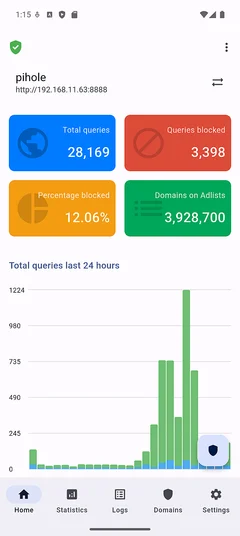
Use line charts to see trends over time. Use bar charts to compare values at a glance.
Statistics screen layout (Domains and Clients)
Section titled “Statistics screen layout (Domains and Clients)”On the Statistics screen, you can choose how client data is displayed:
- List view (left)
- Pie chart view (right)
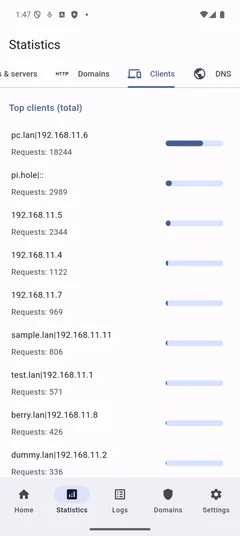
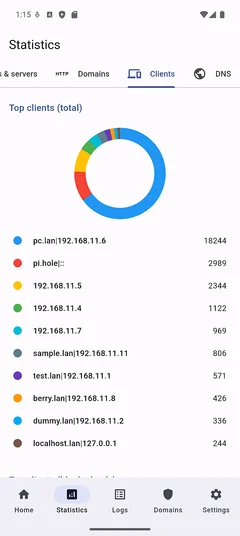
List view is best for precise numbers. Pie charts are useful for quick visual comparison.
Stats refresh interval
Section titled “Stats refresh interval”This setting controls how often the summary data fetched by the app is refreshed.
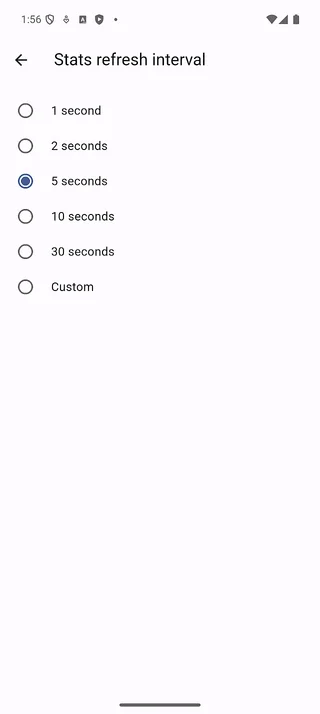
It affects:
- The four summary tiles on the Home screen
- Data shown on the Statistics screen, including Domains and Clients
The summary tiles include values such as total queries and blocked percentage. On the Statistics screen, this interval determines how frequently Domains and Clients data is updated.
You can choose:
- A fixed refresh interval from the predefined options
- A custom interval by entering a number of seconds manually
Use a shorter interval when you want near-real-time feedback on Home and up-to-date Statistics. Use a longer interval to reduce network requests and battery usage.
This setting does not affect live log updates or manual refresh actions on the Logs screen.
Live Log
Section titled “Live Log”This setting controls whether real-time log updates are available on the Logs screen.
When enabled (default), Logs can switch into Live mode and display DNS queries as they occur. When disabled, Logs fall back to manual refresh only.
This setting does not change how Pi-hole records logs. It only affects how the app fetches and updates log entries.
When Live Log is enabled, live updates on the Logs screen still start paused. Tap Resume in Logs to start real-time updates.
For details on how Live mode works and how to use it effectively, see Logs.
Log refresh interval
Section titled “Log refresh interval”This setting controls how often log entries are fetched on the Logs screen.
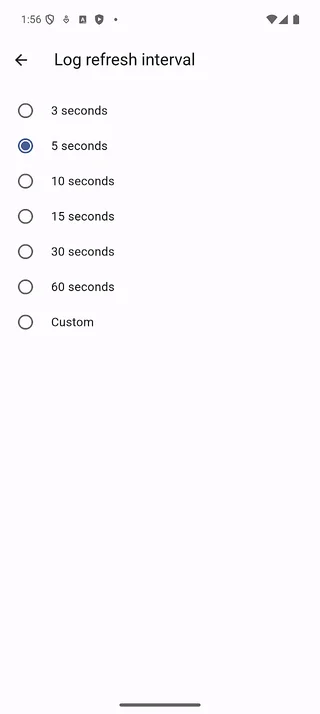
When Live Log is enabled, this interval determines how frequently new log entries are requested and added to the list.
You can choose:
- A fixed refresh interval from the predefined options
- A custom interval by entering a number of seconds manually
Use a shorter interval when actively troubleshooting and watching queries as they occur. Use a longer interval to reduce load when monitoring is less critical.
This setting is ignored when Live Log is disabled. In that case, logs update only when you manually refresh the list.
Logs quantity per request
Section titled “Logs quantity per request”This setting controls how many log entries are returned per request. Its behavior differs between Pi-hole versions.
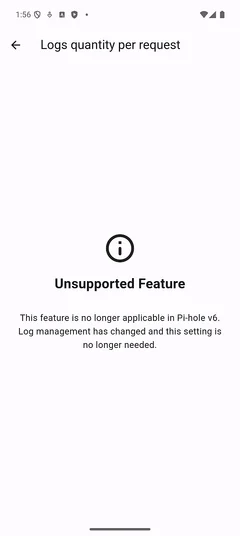
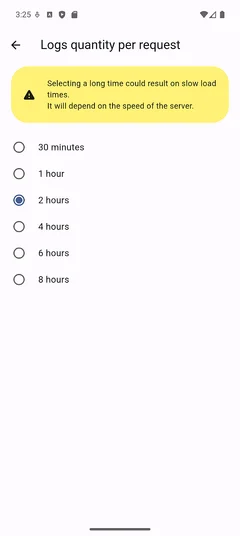
Left: Pi-hole v6 In Pi-hole v6, this setting is no longer configurable. Instead, Logs use an infinite scrolling model that loads entries incrementally as you scroll.
This approach provides a smoother experience, avoids fixed limits, and allows you to browse large log histories more efficiently.
Right: Pi-hole v5 On Pi-hole v5, you can manually configure how many log entries are returned per request using this setting.
This was necessary to balance performance and data volume, but it requires choosing a fixed limit in advance.
If you are using Pi-hole v6, no action is required. The infinite scrolling behavior replaces this setting and provides improved log browsing by default.
When to adjust App Settings
Section titled “When to adjust App Settings”- During first-time setup
- When switching networks or devices
- When charts feel slow, noisy, or hard to read
- When you want the app to better match your preferences
App Settings are safe to explore. They affect only the app and can be changed at any time.