
🤔 FAQ
❓ Q1. The app frequently disconnects or fails to fetch status
Section titled “❓ Q1. The app frequently disconnects or fails to fetch status”| home | servers | settings |
|---|---|---|
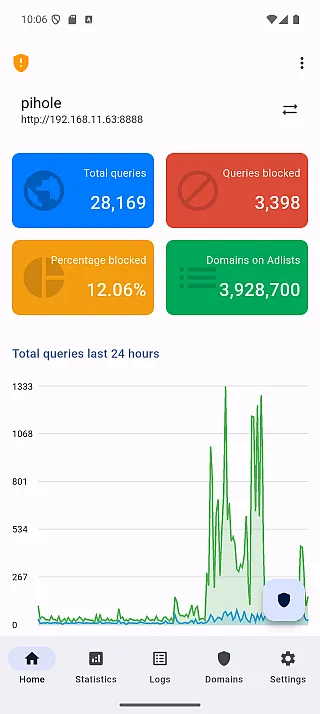 |
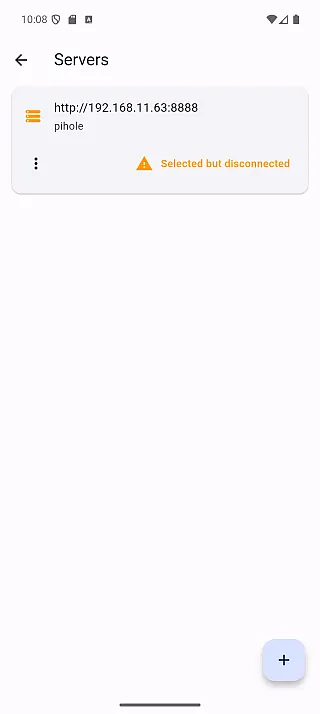 |
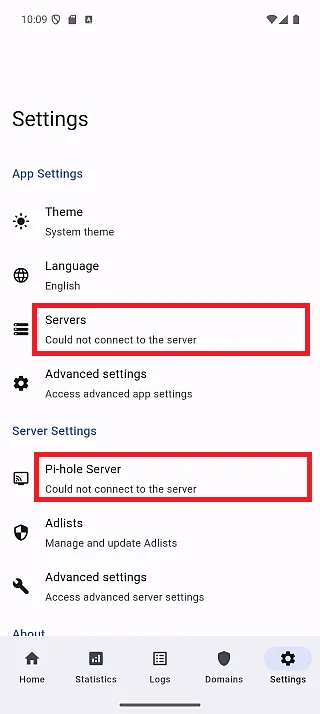 |
💡 Answer
Section titled “💡 Answer”On certain devices, the app may occasionally fail to connect to your Pi-hole server during automatic refresh. This can happen when the refresh timing aligns poorly with how long the server keeps connections open.
🛠 Temporary Workaround
Section titled “🛠 Temporary Workaround”Try adjusting the auto-refresh interval in the app settings.
Using exact round numbers like “5 seconds” (5000 ms) may increase the chance of connection issues. Shifting the interval slightly up or down can help avoid this.
❌ Avoid
Section titled “❌ Avoid”- 5 seconds (5000 ms)
✅ Recommended
Section titled “✅ Recommended”- 4 seconds (4000 ms)
- 6 seconds (6000 ms)
Since version 1.5.0, the app automatically adds a small buffer to avoid this issue, but manual adjustment may still help in some cases.
🔧 Optional Tip
Section titled “🔧 Optional Tip”If you continue to experience this issue, feel free to open an issue. We’re working to improve the reliability across all environments.
❓ Q2. SSL error with a valid Let’s Encrypt certificate
Section titled “❓ Q2. SSL error with a valid Let’s Encrypt certificate”💡 Answer
Section titled “💡 Answer”If the certificate works fine in a browser but the app shows an SSL error, the cause is likely an incomplete certificate chain.
Unlike browsers, Flutter’s HTTP client requires the server to provide the full certificate chain. This happens when the server is configured with cert.pem instead of fullchain.pem.
Pi-hole requires a single combined PEM file containing both the certificate and the private key.
The fix is to use fullchain.pem (not cert.pem) when creating this file.
Pi-hole v6:
cat /etc/letsencrypt/live/yourdomain.com/fullchain.pem \ /etc/letsencrypt/live/yourdomain.com/privkey.pem \ > /etc/pihole/tls.pemIf you cannot fix the server immediately, enable “Allow untrusted certificates” in server settings as a temporary workaround.
For full instructions, see SSL Error with a Valid Let’s Encrypt Certificate.
❓ Q3. “Connection failed” with self-signed certificate
Section titled “❓ Q3. “Connection failed” with self-signed certificate”💡 Answer
Section titled “💡 Answer”- Check if “Allow untrusted certificates” is enabled in server settings
- If using Docker, try enabling “Don’t check SSL certificate”
- Verify the server URL is correct
For more details, see the Certificate Configuration Guide.
❓ Q4. Certificate pin mismatch after server certificate update
Section titled “❓ Q4. Certificate pin mismatch after server certificate update”💡 Answer
Section titled “💡 Answer”If you renewed or regenerated your server’s certificate, the app will detect that the fingerprint no longer matches and block the connection.
To fix this:
- Go to server settings
- Open the server menu and select “Update”
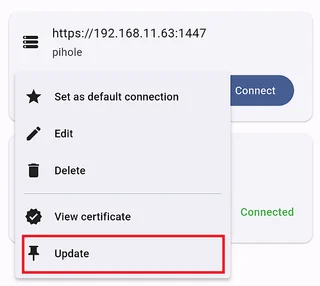
- Verify the new fingerprint is legitimate and tap “Update”
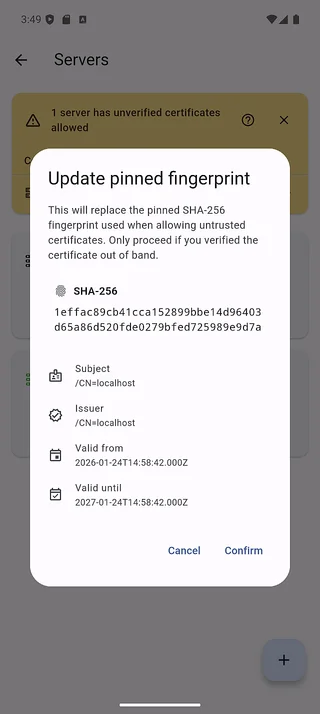
- The server will now show “HTTPS Pinned” status with the new fingerprint
❓ Q5. Warning banner about unverified certificates keeps appearing
Section titled “❓ Q5. Warning banner about unverified certificates keeps appearing”💡 Answer
Section titled “💡 Answer”The warning banner appears when you have servers with “HTTPS Untrusted Allowed” status.
To resolve this:
- Pin the certificate for those servers (recommended) - tap on the server to trigger the pinning flow
- Or tap “Dismiss” on the banner
For more details, see the Certificate Configuration Guide.
❓ Q6. Android Home Widget shows offline or error state
Section titled “❓ Q6. Android Home Widget shows offline or error state”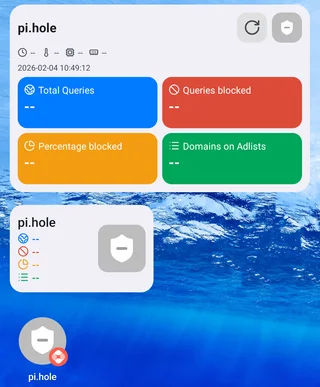
💡 Answer
Section titled “💡 Answer”The widget may show an offline or error state for several reasons:
- Session expired: Pi-hole v6 uses session-based authentication (SID). The session expires after a period of inactivity.
- Screen off for extended time: Background connections may be lost when your device has been idle for a long time.
- Server unreachable: The Pi-hole server may be offline or network connectivity is interrupted.
🛠 How to Fix
Section titled “🛠 How to Fix”Tap the widget to launch the app and reconnect.
- Tap anywhere on the widget
- The app opens and automatically connects to the server associated with that widget
- Once connected, return to your Home screen
- The widget will update with the latest status
For more details, see the Android Home Widget Guide.
❓ Q7. Pi-hole v5: Connects fine but enabling/disabling blocking fails
Section titled “❓ Q7. Pi-hole v5: Connects fine but enabling/disabling blocking fails”💡 Answer
Section titled “💡 Answer”This affects Pi-hole v5 servers that have no web password set.
Unlike v6, the v5 API does not bypass authentication when no password is configured - it still rejects any request that sends a non-empty API token. So if the connection’s Token field holds a leftover token (for example, the server used to have a password that was later removed), the situation is:
- Connecting and reading status succeeds (status queries need no auth).
- Turning blocking ON/OFF fails with “Couldn’t disable server.” (or “Couldn’t enable server.”).
🛠 How to Fix
Section titled “🛠 How to Fix”Clear the token, then reconnect.
- Open the server’s settings and edit the connection
- Delete the value in the Token field (leave it empty)
- Save and reconnect to the server
- Blocking ON/OFF now works
❓ Q8. Pi-hole v6: Cannot connect when no password is set
Section titled “❓ Q8. Pi-hole v6: Cannot connect when no password is set”💡 Answer
Section titled “💡 Answer”If your Pi-hole v6 server has no password set (the web interface opens without a login), app v1.9.x cannot connect to it. Adding the server, or using a server that was added earlier, fails with a connection error.
A password-less Pi-hole v6 replies to the login request with a valid session
that carries no sid and no csrf:
{ "session": { "valid": true, "totp": false, "sid": null, "csrf": null, "validity": -1, "message": "no password set" }}App v1.9.x expects both fields to always be present, so it treats this reply as a failure and the connection never completes.
🛠 Solution
Section titled “🛠 Solution”Update the app to v1.10.0 or later. From v1.10.0 the app accepts the empty session and connects to a password-less Pi-hole v6.
If you cannot update yet, set a password on your Pi-hole and enter it in the app:
- Open the Pi-hole web interface and go to
Settings > Web interface / API - Set a password
- In the app, edit the connection and enter the same password