
🏠 Home
What you can do on this screen
Section titled “What you can do on this screen”The Home screen is the control center of Pi-hole client. You mainly use it to:
- Check whether Pi-hole is currently blocking traffic
- Temporarily pause or resume blocking when something breaks
- Jump directly to detailed views such as Logs or Adlists
Open this screen first when ads suddenly appear or when you want to confirm that you are connected to the correct server.
Start by confirming the server and its state
Section titled “Start by confirming the server and its state”When Home opens, do not tap anything yet. First, look at the top area of the screen.
You will see the currently selected server name and a shield status icon. This area tells you which server you are controlling and whether it is ready to accept actions.
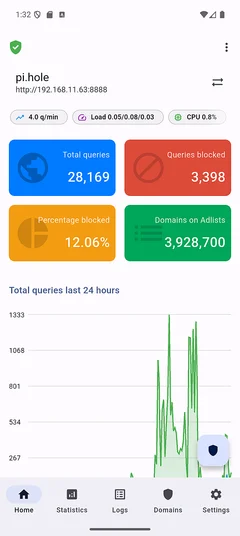
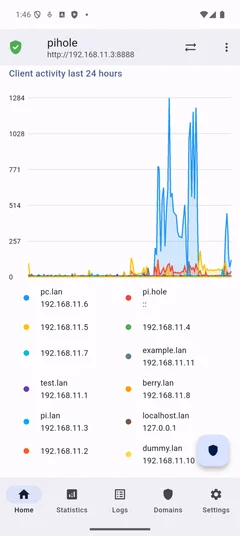
The shield icon represents the current state:
- Green shield with a check: Blocking is enabled and Pi-hole is actively filtering queries.
- Red shield with a cross: Blocking is disabled and all DNS queries are allowed.
- Orange shield with an exclamation mark: The app cannot communicate with the server.
- Gray shield outline: The app is still connecting or loading data.

Server status chips
Section titled “Server status chips”When the selected server is a Pi-hole v6, a row of chips below the header shows its live system metrics. The values update on every refresh. Swipe the row sideways to see the chips that do not fit on screen, and long-press a chip to see what it means.

| Chip | Example | What it shows |
|---|---|---|
| Queries per minute | 4.0 q/min |
DNS queries the server handles a minute |
| CPU load average | Load 0.05/0.08/0.03 |
CPU load over the last 1, 5 and 15 minutes |
| CPU usage | CPU 0.8% |
Current CPU usage |
| RAM usage | RAM 8.29% |
Current memory usage |
| CPU temperature | Temp 37.0°C |
CPU temperature, in the unit set on the server |
| System uptime | Up 7d 3h 36m |
How long the server has been running |
A chip shows - while its value is still loading or the server does not report
it.
Server certificate warning
Section titled “Server certificate warning”Next to the server name, you may also see a certificate warning icon (⚠️).

This warning icon indicates that there is a connection issue with the server’s SSL/TLS certificate. It can appear in two places:
- Next to the server name on the Home screen
- In the server list when you open the server switch dialog
This warning appears when one of these conditions is true:
- “HTTPS Untrusted Blocked” - Server has a self-signed or invalid certificate, but “Allow untrusted certificates” is disabled
- “HTTPS Pin Mismatch” - The server’s certificate fingerprint doesn’t match the previously pinned value (certificate may have been renewed or replaced)
- “Don’t check SSL certificate” - All SSL/TLS certificate validation is disabled (useful for testing but reduces security)
Use it to decide what to do next: wait, reconnect, switch servers, or toggle blocking.
If the icon is gray or orange, avoid making changes until the connection stabilizes.
Quick actions from the menu
Section titled “Quick actions from the menu”Tap the three-dot icon in the top-right corner to open quick actions.
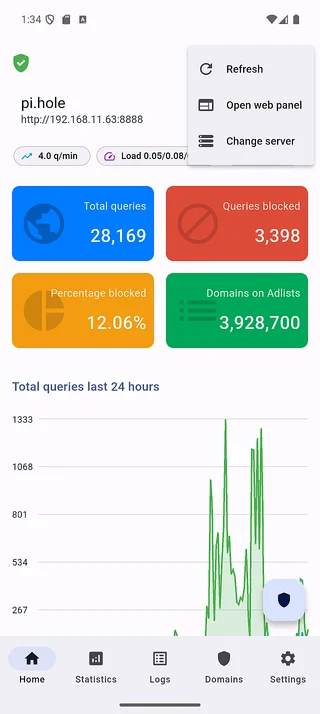
Depending on the current state, you may see:
- Refresh - reload server status and statistics
- Open Web Panel - open the Pi-hole admin interface in a browser
- Change Server - switch to another configured server
Use this menu when the displayed data looks outdated or when you need to access the full web interface for advanced configuration.
Note: Open Web Panel assumes the admin interface is available at /admin/.
If your Pi-hole uses a custom path, open it manually in a browser.
Switching the active server
Section titled “Switching the active server”Next to the server name, you see a ⇄ icon. This indicates that server switching is available.
Tap the server name area to open the server switch dialog.
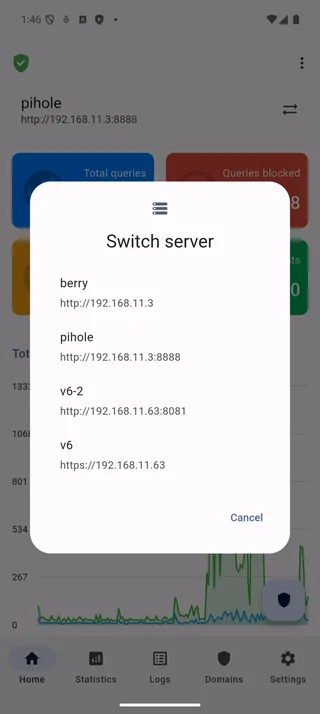
In this dialog, you can:
- View all configured Pi-hole servers
- See which server is currently active
- See any certificate warnings (indicated by ⚠️) next to problematic servers
- Tap another server to switch immediately
If a certificate warning icon appears next to a server, it means there is a connection issue with that server’s SSL/TLS certificate. You can still switch to that server, but you will need to resolve the certificate issue from Server Settings before normal operation is possible.
After selecting a server, Home reloads automatically. All statistics, status icons, and actions now refer to the newly selected server.
Use this feature when you manage multiple Pi-hole instances (for example, a home server and a remote server).
Always confirm the server name again after switching. Actions such as pausing blocking apply only to the currently selected server.
Using summary tiles to jump to details
Section titled “Using summary tiles to jump to details”Below the top status area, you see four summary tiles showing live statistics.
Each tile is tappable and works as a shortcut:
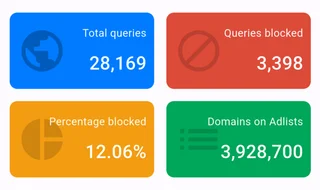
- Total Queries Opens Network (showing all devices).
- Queries Blocked Opens Logs with blocked queries in focus.
- Percentage Blocked Opens Logs with the status filter reset to show all queries.
- Domains on Adlists Opens the adlist (subscription) view in Server Settings.
Use these tiles when you already know what you want to inspect and want to skip manual navigation through Settings.
While data is loading, skeleton placeholders appear. This means the server connection is active but the data is not ready yet.
Controlling blocking with the floating shield button
Section titled “Controlling blocking with the floating shield button”The floating shield button in the bottom-right corner is the fastest way to control blocking.
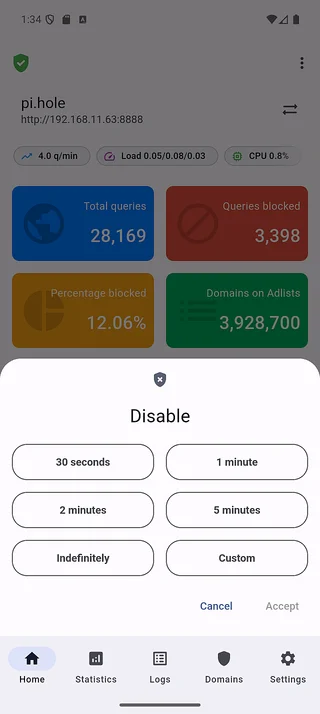
- When blocking is ON, tapping the button opens a pause dialog
- Choose a duration (for example, 5 minutes)
- Blocking automatically resumes after the selected time
If blocking is already OFF, tapping the button resumes it immediately.
The button hides while you scroll down and reappears when you scroll up. It is also hidden while the screen is still loading.
Use this control only for short troubleshooting. Leaving blocking disabled for long periods reduces the effectiveness of Pi-hole.
Typical operation: pause blocking briefly
Section titled “Typical operation: pause blocking briefly”- Open Home
- Confirm the shield icon is green
- Tap the floating shield button
- Select 5 minutes
- Blocking pauses and resumes automatically
This flow is designed to be quick and reversible without opening Settings.
Common real-world scenarios
Section titled “Common real-world scenarios”-
Ads suddenly appear Open Home, check the shield icon, and resume blocking if it is red.
-
A website or app fails to load Pause blocking for a short time, test again, and let blocking resume automatically.
-
Investigating blocked traffic Tap Queries Blocked to jump directly to Logs with the relevant filter applied.
Important notes and limits
Section titled “Important notes and limits”If no server is selected, Home shows almost no data and most actions are disabled. Connection errors appear as an orange shield, and blocking controls will not work. Some shortcuts depend on Pi-hole v6 features and may not exist on older versions.
Pi-hole concepts used on this screen
Section titled “Pi-hole concepts used on this screen”A query is a DNS request handled by Pi-hole. A blocked query means Pi-hole returned a blocking response instead of an IP address. Pausing blocking temporarily disables filtering at the Pi-hole core level.