
Connecting to Your Pi-hole
On this page, there are explained all the instructions about how to create a connection to the server with different circumstances. These are the most common cases. There may be other configurations that aren’t covered by this guide.
⚙️ Common settings
Section titled “⚙️ Common settings”- Version: You can choose between
v5andv6 (default). The latest version isv6, while the previous generation isv5. - Authentication:
- v5: Requires an API token (See: Getting the API token (v5 only)).
- v6: Requires a password to log in to the web UI.
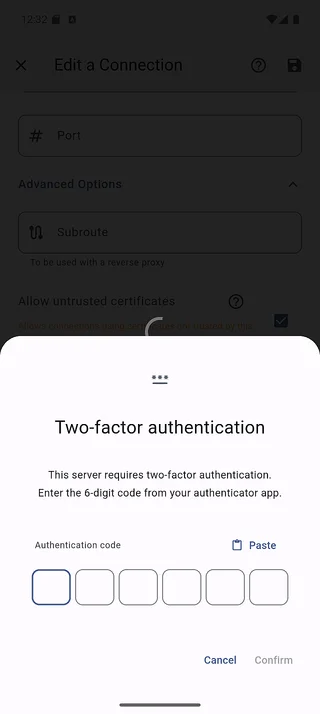
- v6 with two-factor authentication (2FA): Requires the password and a 6-digit code from your authenticator app.
Two-factor authentication (2FA)
Section titled “Two-factor authentication (2FA)”If your Pi-hole v6 server has 2FA enabled, the app asks for a 6-digit authentication code when it logs in. This happens when you:
- add a server or save changes to an existing one
- connect to a server from the server list
- return to a server whose session has expired
Enter the current code from your authenticator app. A code can only be used once, so if it is rejected as already used, wait for the next code.
1. Basic connection
Section titled “1. Basic connection”The simplest case. The Pi-hole server usually is installed on a Raspberry Pi and the web administration panel is on the default port (80).
- IP address or domain: your Pi-hole server IP or domain
- Subroute: empty
- Port: empty
- HTTP/HTTPS: HTTP
2. Basic connection with custom port
Section titled “2. Basic connection with custom port”The Pi-hole server is usually installed on a Docker container or virtual machine.
- IP address or domain: your Pi-hole server IP or domain
- Subroute: empty
- Port: the port you are using for the web administration panel
- HTTP/HTTPS: HTTP
3. HTTPS connection 🔒
Section titled “3. HTTPS connection 🔒”You have enabled HTTPS connections on your Pi-hole server config, but you access it using the default HTTPS port (443).
- IP address or domain: your Pi-hole server IP or domain
- Subroute: empty
- Port: empty
- HTTP/HTTPS: HTTPS
4. HTTPS connection with custom port (or exposed port) 🔒
Section titled “4. HTTPS connection with custom port (or exposed port) 🔒”You have enabled HTTPS connections on your Pi-hole server config and you have an exposed port on your router to access it.
- IP address or domain: your Pi-hole server IP or domain
- Subroute: empty
- Port: the port you are exposing for the web administration panel
- HTTP/HTTPS: HTTPS
5. HTTPS connection with reverse proxy ⚡
Section titled “5. HTTPS connection with reverse proxy ⚡”You have your Pi-hole server behind a reverse proxy.
- IP address or domain: your Pi-hole server IP or domain
- Subroute: the route you are using on your reverse proxy to access Pi-hole web administration panel
- Port: empty
- HTTP/HTTPS: HTTPS